TUI Guide
The TUI (Text-based User Interface) provides a notebook-style environment for interacting with backyard sandboxes in the terminal.
Here's an example of the built-in TUI to test out the sandboxes in a notebook-like environment which transparently switches to a container-backed sandbox when requiring third-party Python libraries or network access.
 Demo recorded with asciinema.
Installation
The TUI requires the [tui] extra:
Launching
The TUI starts a sandbox in Monty mode (with read-only access and your current working directory mounted as the workspace). As you write code that requires container features, it converts transparently.
Interface overview
The TUI has three main areas:
- Notebook — The central workspace. Each cell contains a Python code editor and an output area below it.
- Sidebar — A collapsible panel on the right showing sandbox status, resources, workspace paths, file changes, and cell stats.
- Footer — Shows available key bindings.
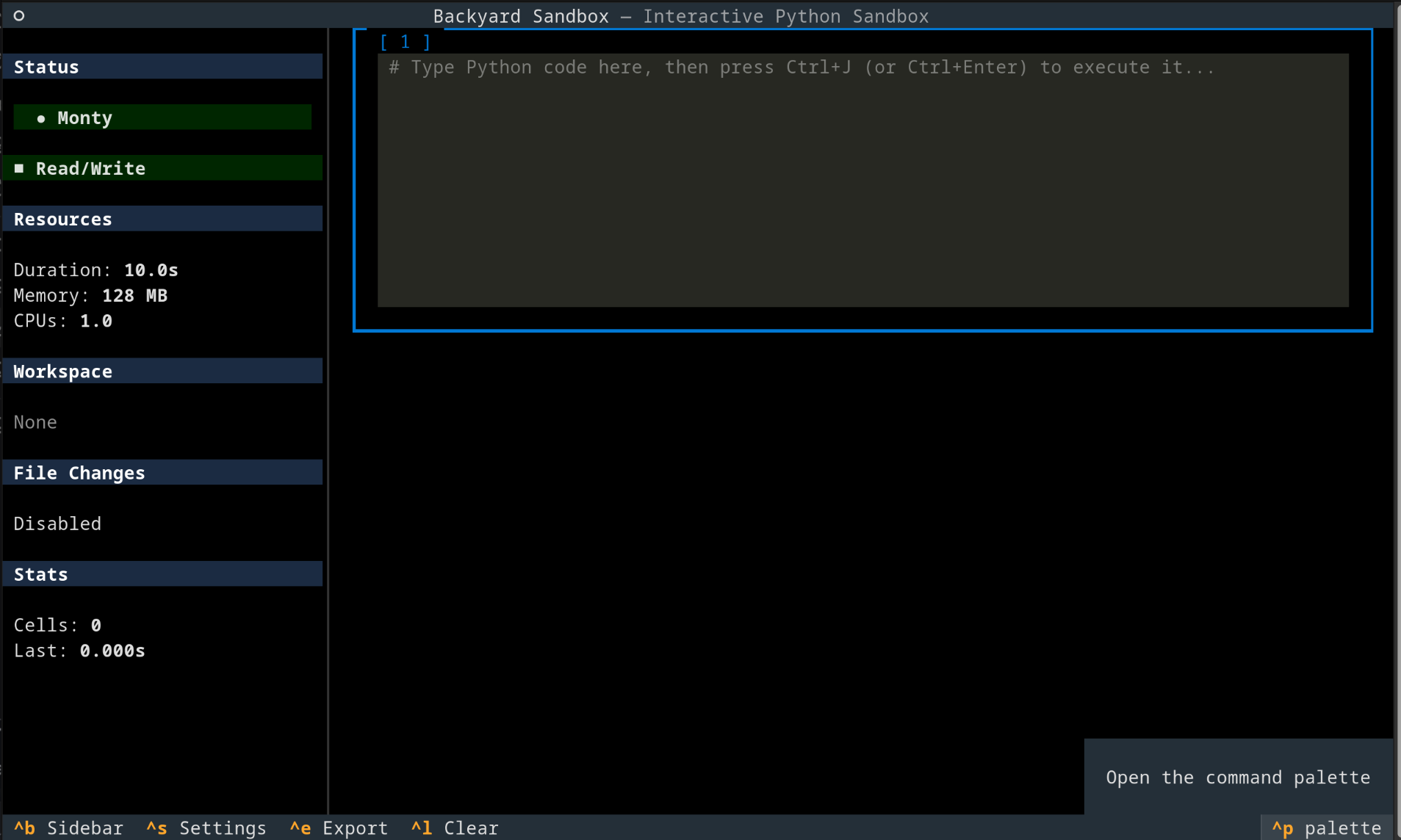 Overview of the TUI editor.
Writing and executing code
Each cell is a Python editor with line numbers and syntax highlighting. Type your code and press Ctrl+J or Ctrl+Enter to execute.
After execution the cell becomes read-only, its border shows the execution duration, and output (stdout, stderr, return values) appears below. A new empty cell is created and focused automatically.
Execution output
The TUI renders different result types visually:
| Type | Rendering |
|---|---|
stdout |
Plain text (green) |
stderr |
Plain text (yellow) |
dict |
Expandable tree widget |
list |
Data table with index and value columns |
None |
No output |
| Other values | repr() text |
| Errors | Labeled error messages in red |
| Timeouts / memory limits | Dedicated error messages |
File changes (if tracking is enabled) are shown below the output with + for added, ~ for modified, and - for deleted files.
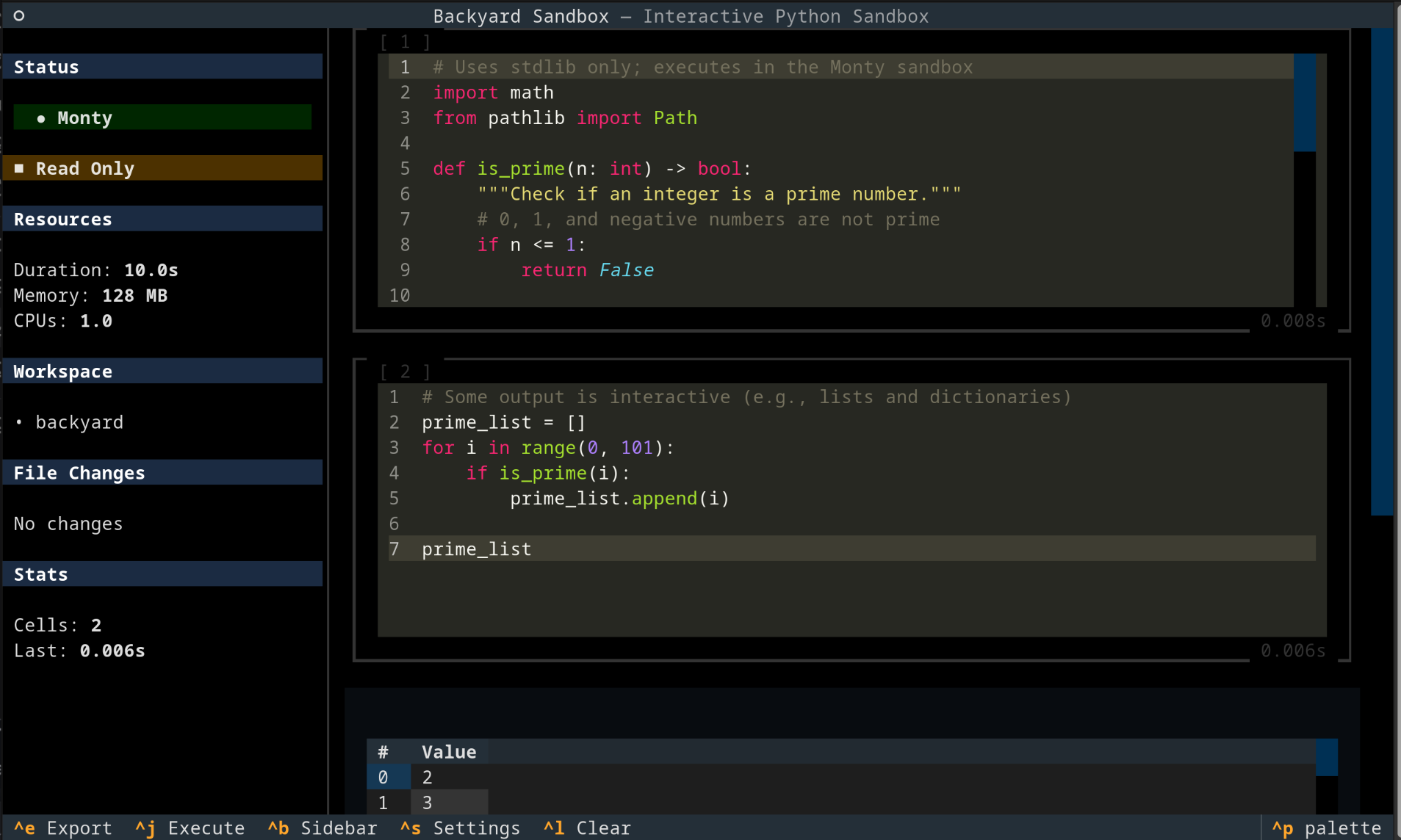 Execution output can be interactive. This example shows the output of a list.
Sidebar
Toggle the sidebar with Ctrl+B. It shows:
- Status — Active backend type (
MontyorContainer) and read-only/read-write mode - Resources — Duration limit, memory limit, CPUs
- Workspace — Mounted workspace paths
- File Changes — Summary of all file changes across the session
- Stats — Total cell count and last execution duration
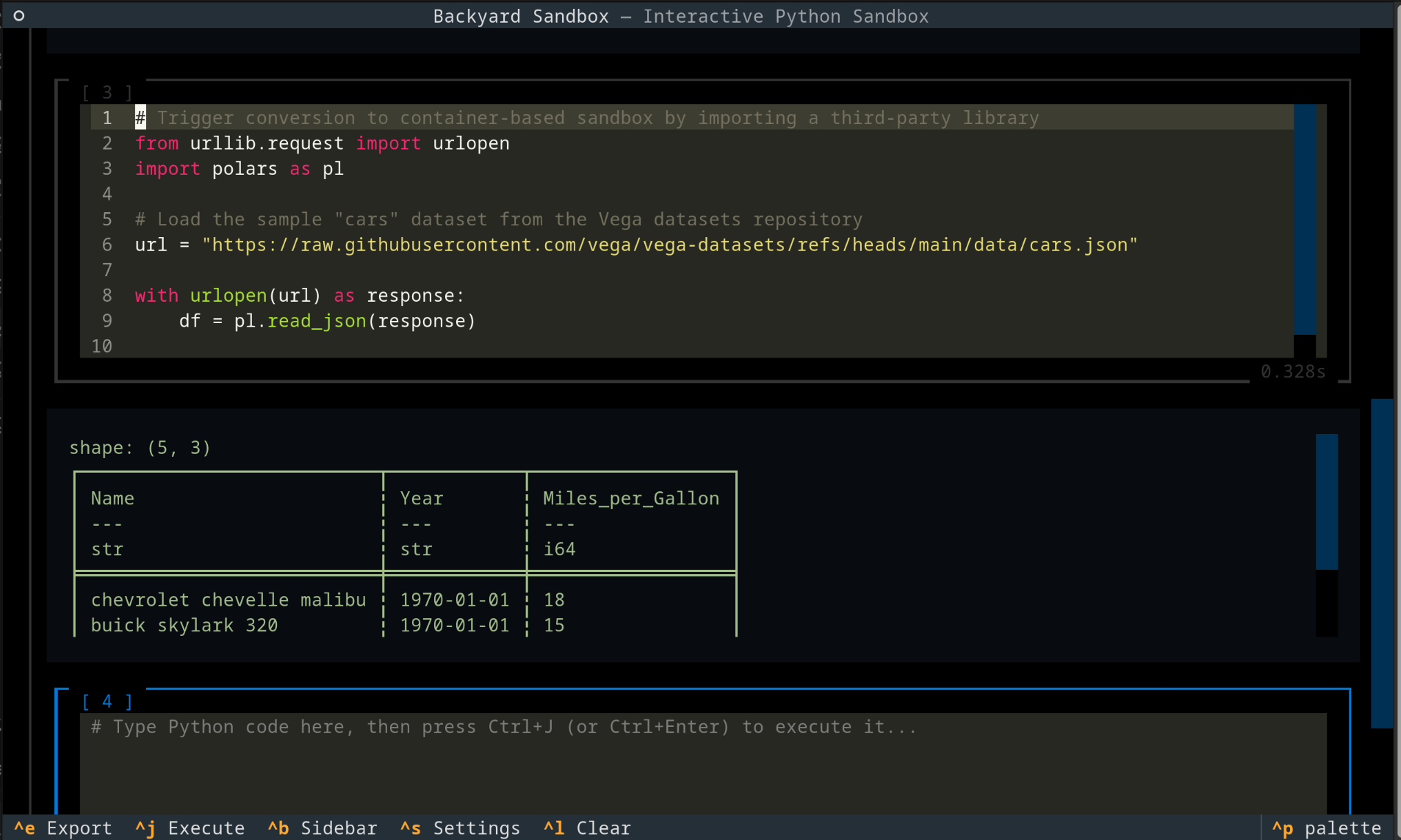 The sidebar can be collapsed, affording more space to the main notebook area.
Settings
Press Ctrl+S to open the settings modal where you can configure:
| Setting | Type | Default | Description |
|---|---|---|---|
| Timeout | Number (seconds) | 10 | Max execution time per call |
| Memory | Integer (MB) | 128 | Max memory |
| CPUs | Number | 1.0 | Max CPUs (container only) |
| Network | Switch | Off | Network access (container only) |
| Package Cache | Switch | Off | Use cached PyPI downloads (container only) |
| Read-only | Switch | On | Prevent file writes |
| Workspace Paths | Comma-separated | Current directory | Directories/files to mount |
Changes take effect immediately after clicking Apply. Note that some settings (like workspace paths) take full effect only after sandbox conversion or restart.
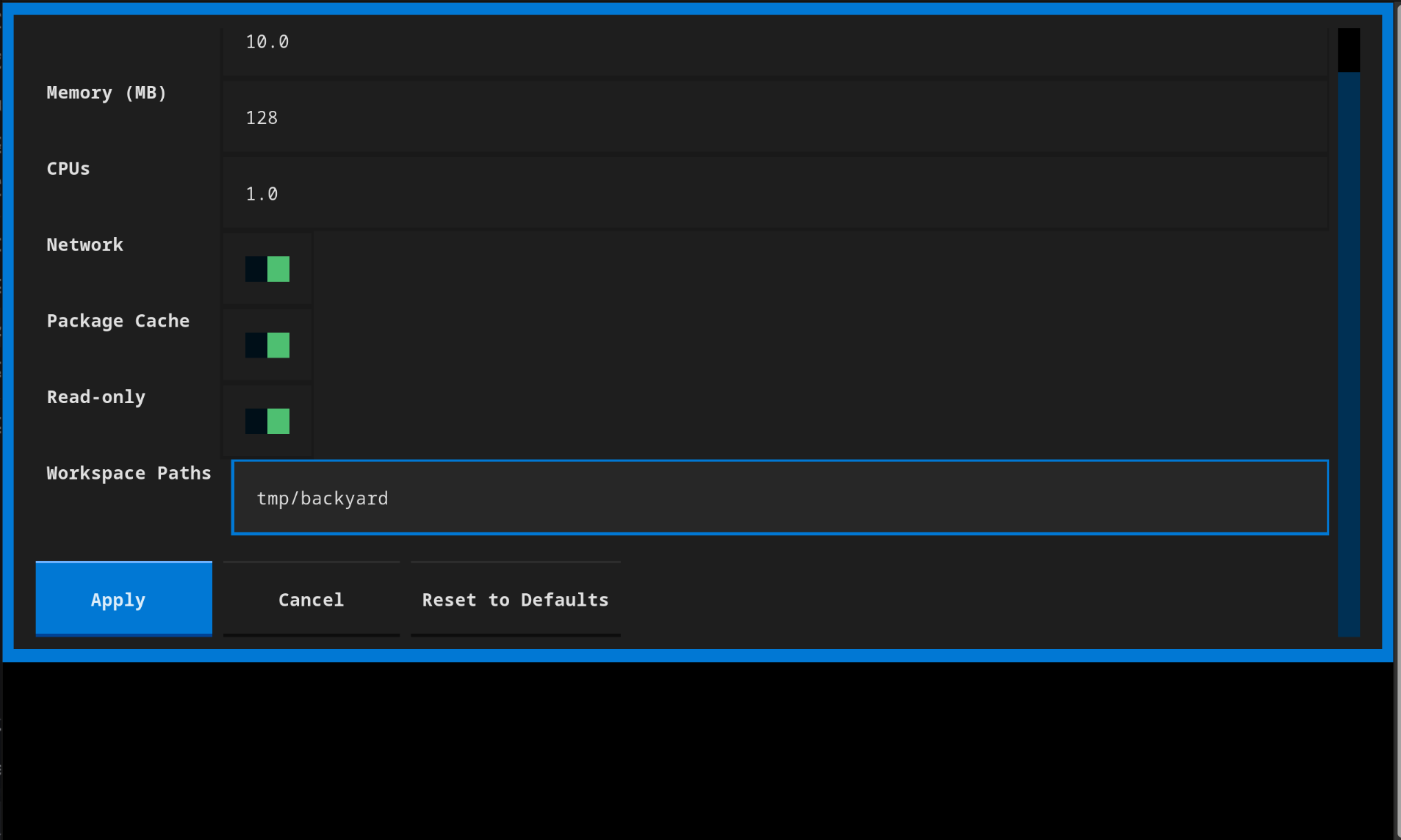 The settings modal controls some of the configuration options for the sandbox.
Exporting sessions
Press Ctrl+E to export all executed cells to a .py file. The export uses # %% cell separators, making it compatible with VS Code and Jupyter notebooks.
From the examples above, the export would be:
# %%
# Uses stdlib only; executes in the Monty sandbox
import math
from pathlib import Path

def is_prime(n: int) -> bool:
    """Check if an integer is a prime number."""
    # 0, 1, and negative numbers are not prime
    if n <= 1:
        return False

    # 2 and 3 are prime numbers
    if n <= 3:
        return True

    # Eliminate even numbers and multiples of 3
    if n % 2 == 0 or n % 3 == 0:
        return False

    # Check remaining possible factors up to sqrt(n)
    # All primes greater than 3 can be written in the form 6k +/- 1
    limit = int(math.isqrt(n))
    for i in range(5, limit + 1, 6):
        if n % i == 0 or n % (i + 2) == 0:
            return False

    return True

# %%
# Some output is interactive (e.g., lists and dictionaries)
prime_list = []
for i in range(0, 101):
    if is_prime(i):
        prime_list.append(i)

prime_list

# %%
# Trigger conversion to container-based sandbox by importing a third-party library
from urllib.request import urlopen
import polars as pl

# Load the sample "cars" dataset from the Vega datasets repository
url = "https://raw.githubusercontent.com/vega/vega-datasets/refs/heads/main/data/cars.json"

with urlopen(url) as response:
    df = pl.read_json(response)

print(df.select("Name", "Year", "Miles_per_Gallon").head())
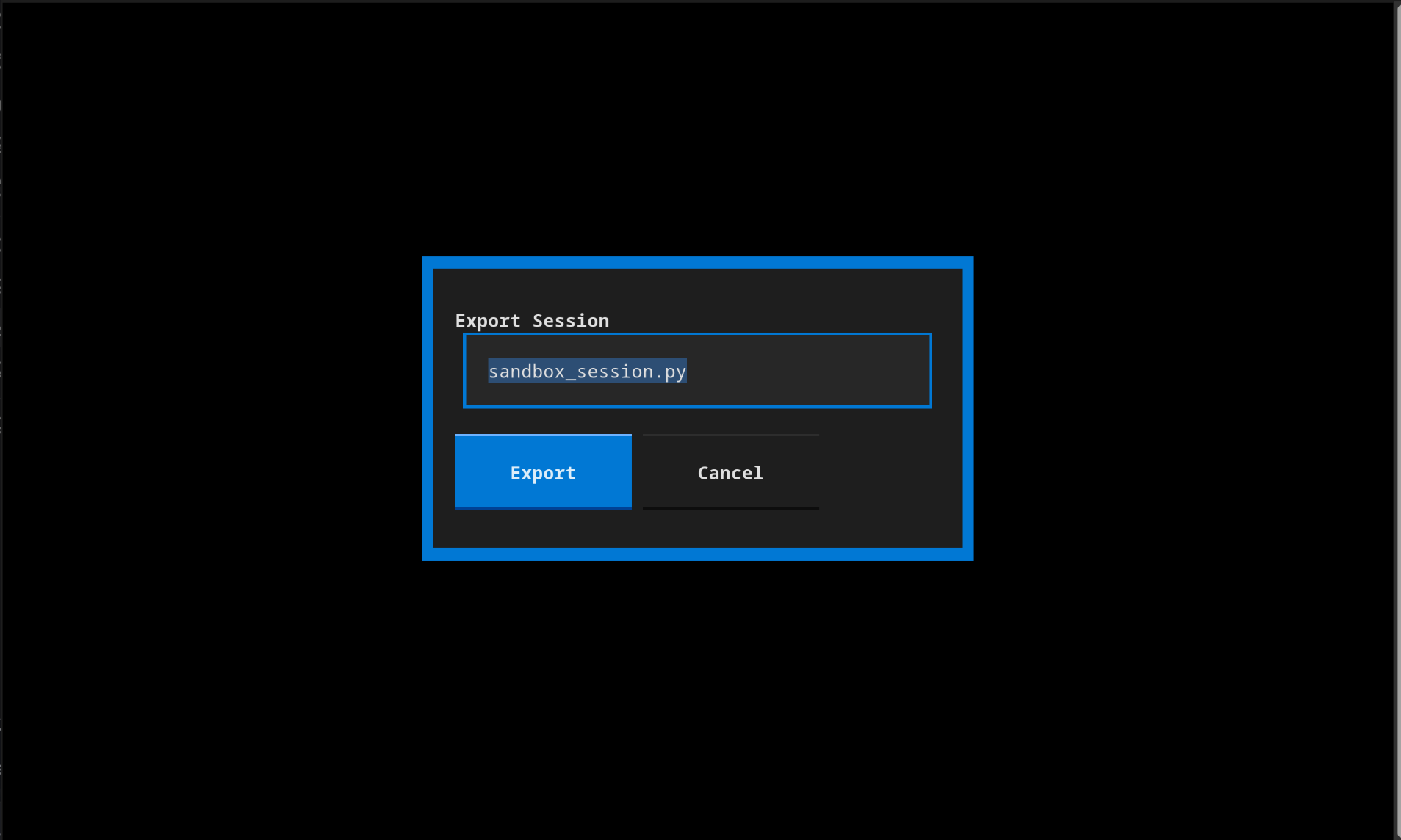 A "notebook" can be exported to a .py file with cells delimitted by
 # %%.
Session management
- Clearing (
Ctrl+L) — Resets the sandbox state and removes all cells, with a confirmation dialog. - Recall last code — With an empty cell focused, press the
Uparrow key to re-populate the editor with the previously submitted code. - Quitting — Press
Ctrl+QorCtrl+Cin the terminal to exit. The sandbox is cleaned up automatically.
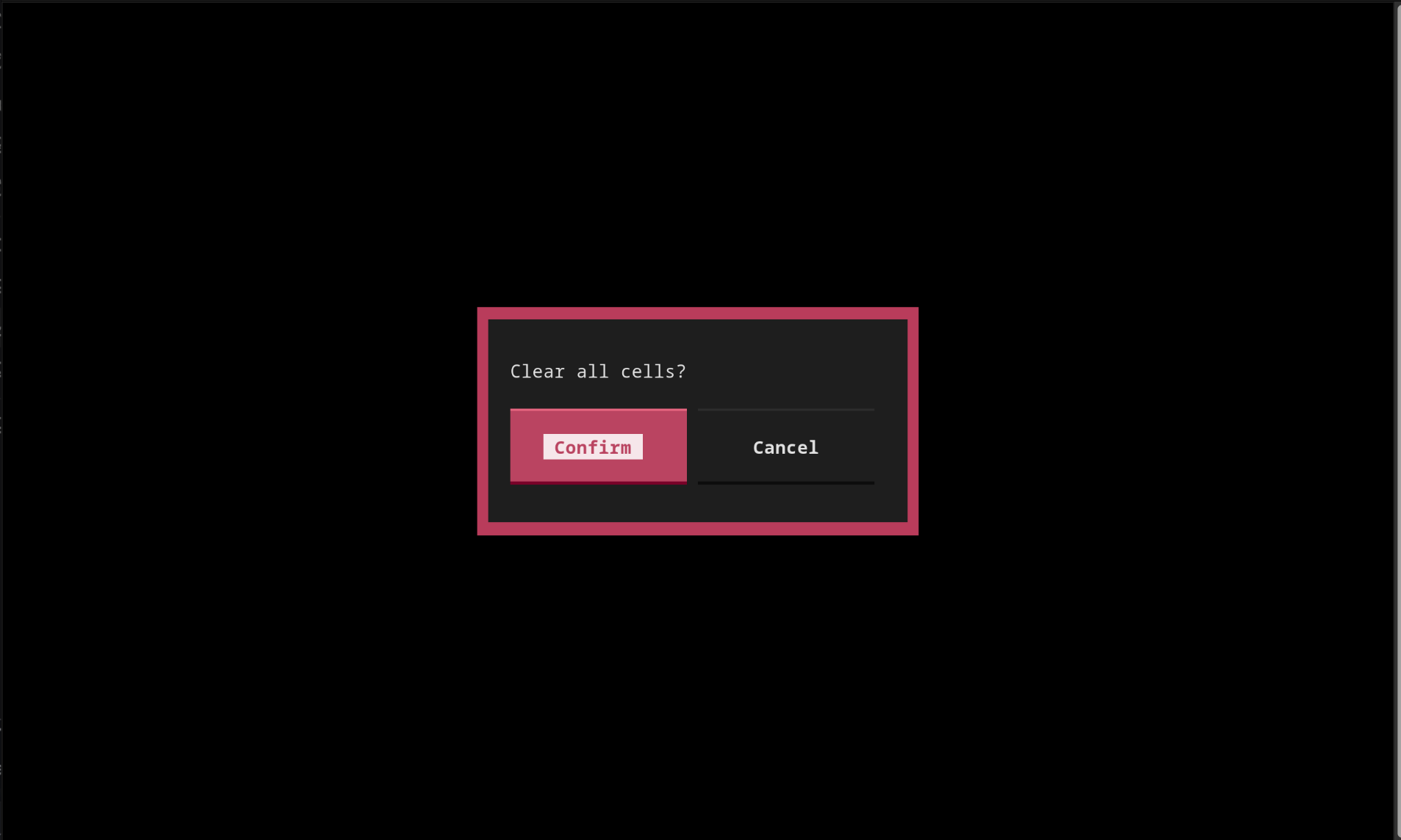 To reset, type
 Ctrl+L to clear all cells.
Command palette
The TUI comes with a command palette that can be invoked with Ctrl+P. Users can:
- See keyboard shortcuts
- Change the theme
- Quit the TUI
- Take a "screenshot" (an SVG)
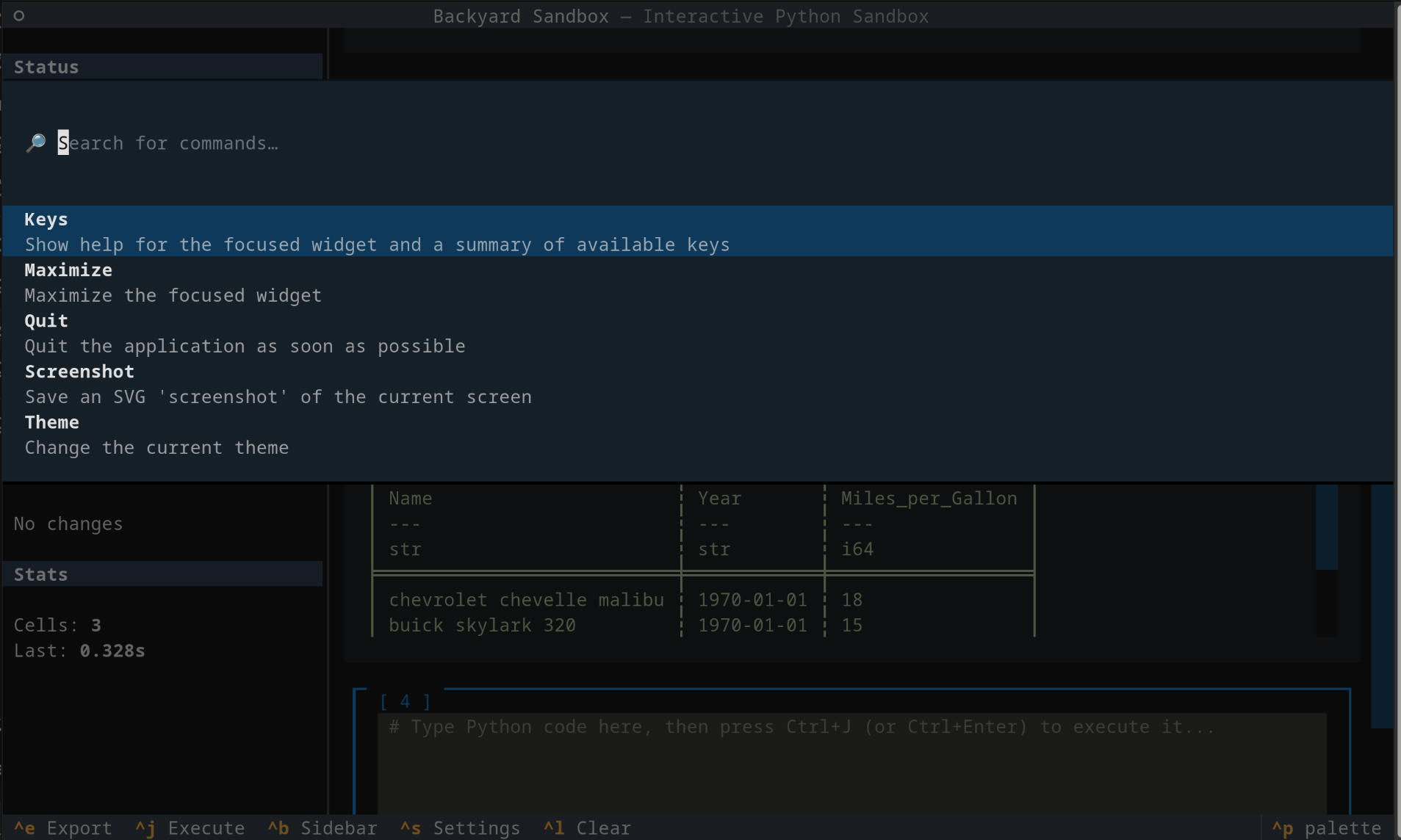 Invoke the command palette to view settings, change the theme, and quit the TUI.
Backend awareness
The sidebar shows which backend is active. When you first launch, it shows Monty. If you run code that requires a container (third-party imports, class definitions, etc.), it converts and the sidebar updates to Container. All previous state and variables are preserved during the conversion.
# Starts on Monty — sidebar shows "Monty"
result = 42

# Triggers conversion — sidebar now shows "Container"
import numpy as np
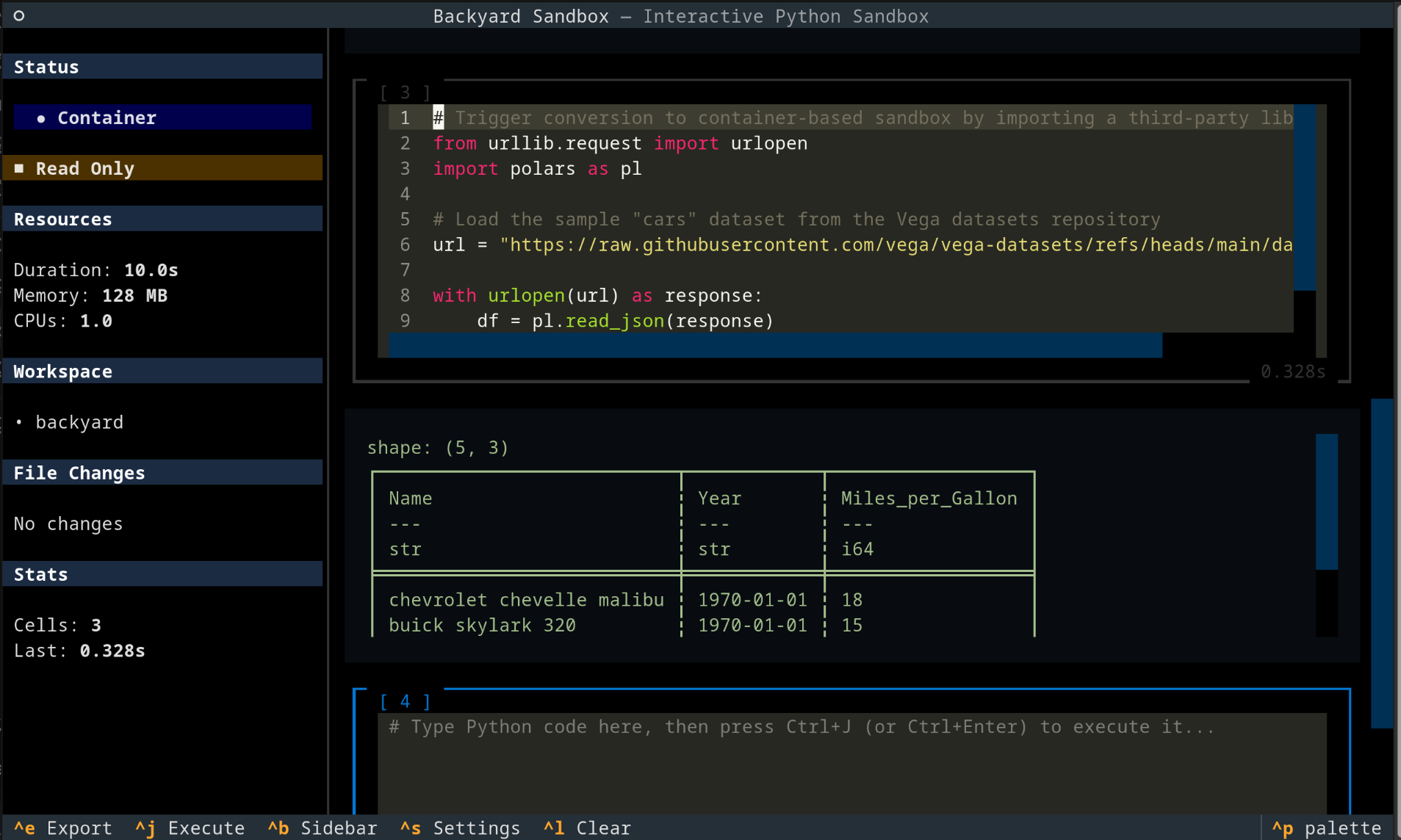 This screenshot shows the container-based sandbox, after running code to import a third-party library and make a network request.